Oppo Find X9 Ultra: here are the most useful tips
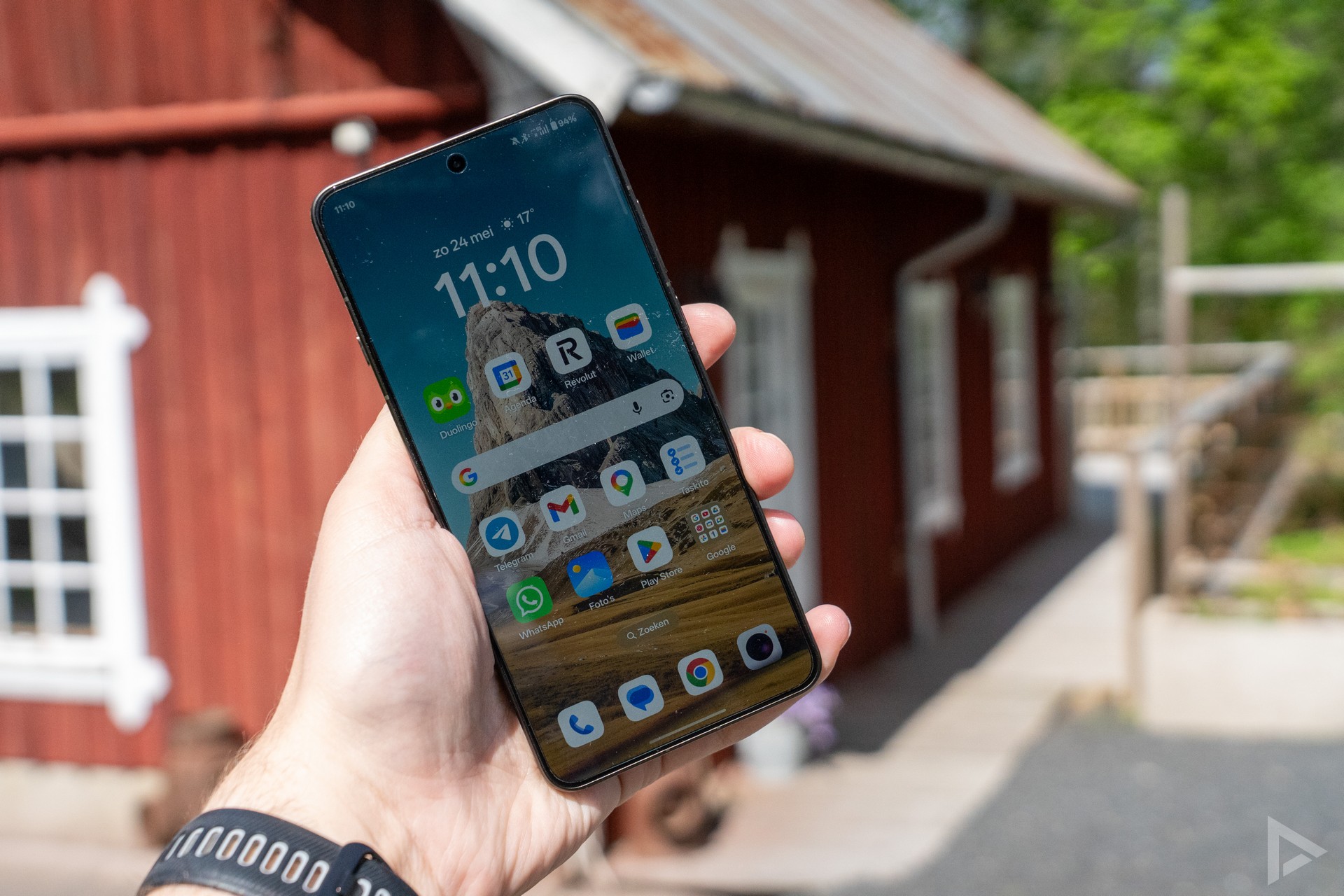
With the Oppo Find X9 Ultra, you have an incredibly feature-packed smartphone at your disposal. We’ve already mentioned this in our Oppo Find X9 Ultra review. You can do all sorts of things with it – perhaps even too many. In this Oppo Find X9 Ultra tips article, we’ll highlight various handy tips and tricks to help you get even more out of your smartphone. A nice bonus: many of these tips also work on other Android devices from the manufacturer, such as the Oppo Find X9 Pro. So grab your smartphone, and let’s go!
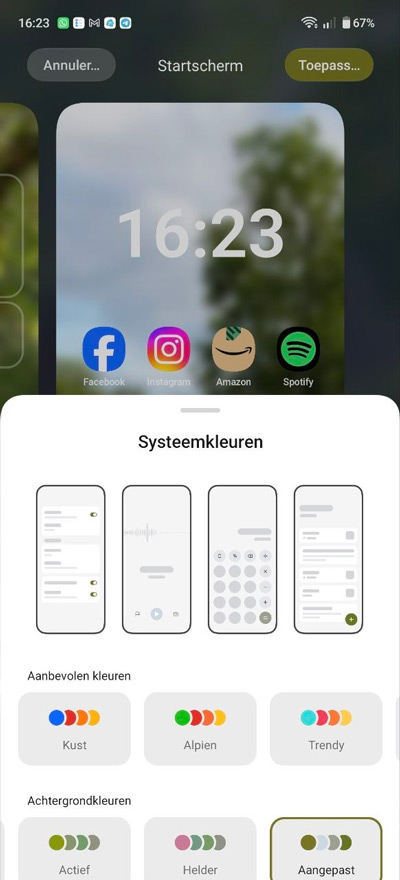
Customised theme colours
When you set a wallpaper, the phone automatically selects the colours used throughout the system. Think of the colour of the buttons in the interface, which match the set background. But perhaps you’d prefer a different colour. To do this, go to an empty space on your phone’s home screen. You’ll then find the ‘Wallpaper and style’ option at the bottom. Next, select ‘System colours’. Here, you can choose from a selection of preset colours or customise them. This allows you to choose the colours you want to see in the interface.
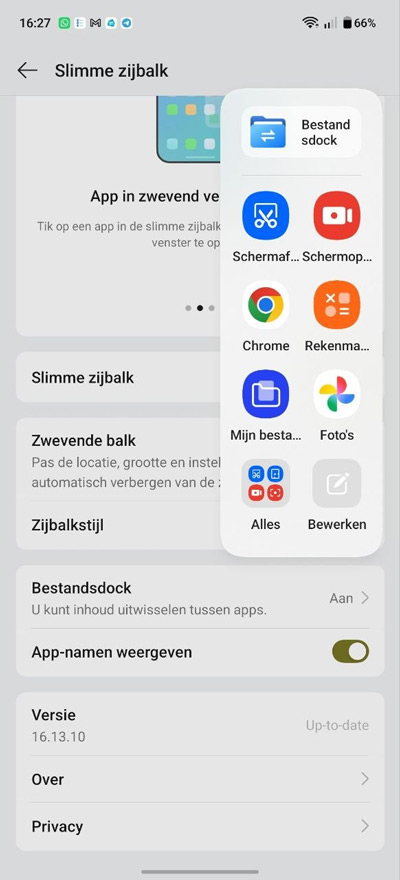
Smart Sidebar
Want quick access to certain features and apps? The Oppo Find X9 Ultra comes with a handy feature for just that: the Smart Sidebar. You can find this option by searching for ‘Sidebar’ in the search bar within the ‘Settings’ menu. You’ll then see a range of options and settings to personalise it. You can adjust the size and transparency, as well as the number of columns. Once you’ve set up the sidebar, you can easily customise the suggested apps using the pencil icon. If you find the sidebar annoying, you can also disable it via these settings.
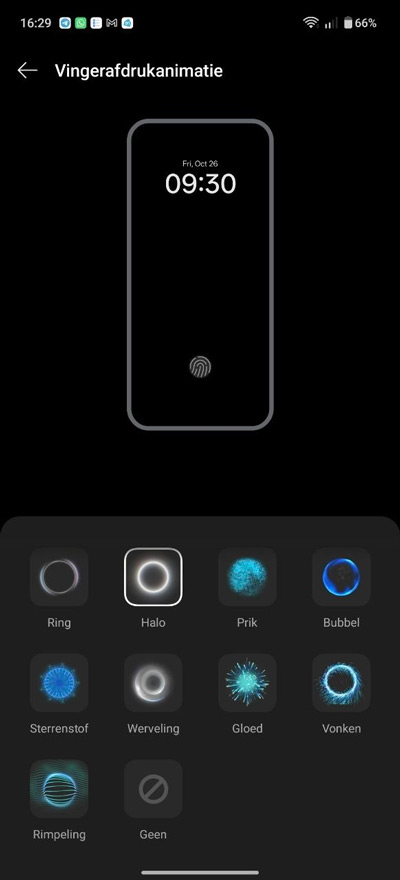
Fingerprint animation
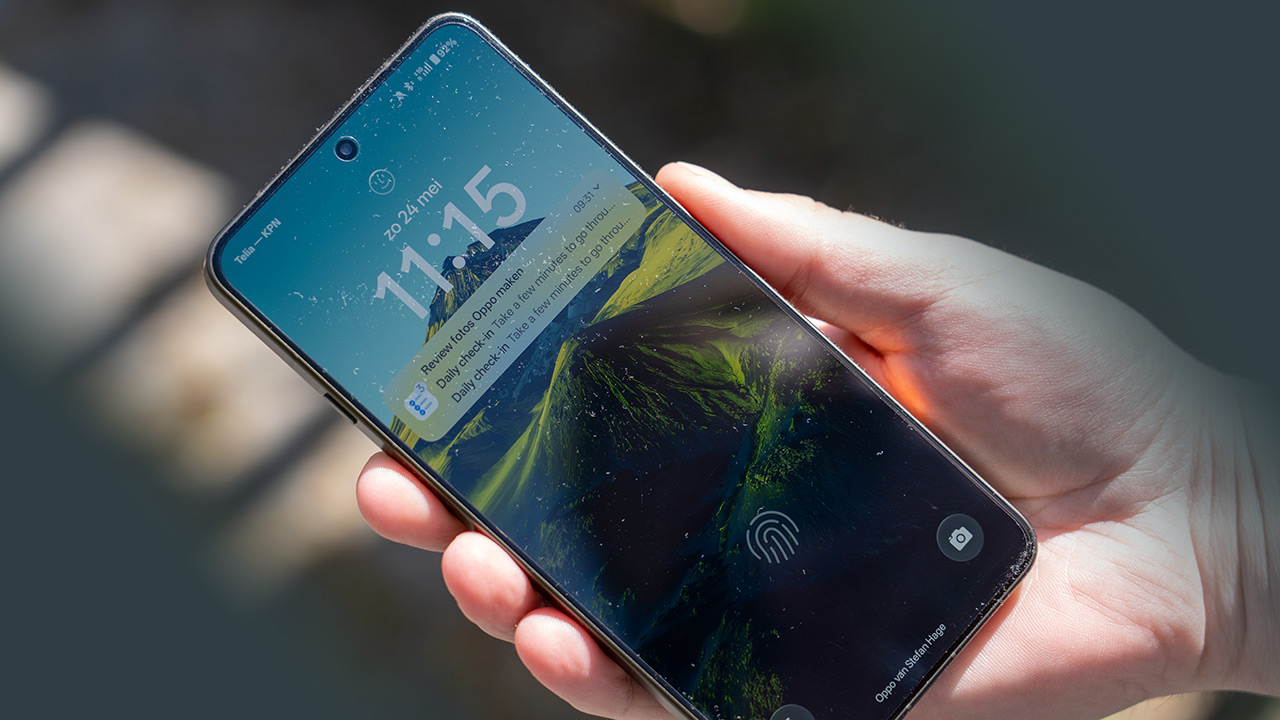
If you like to unlock your phone with a fingerprint, the following tip will come in very handy. In the settings, you can select ‘Fingerprint animation’. You can then choose from nine different styles, which you’ll see whilst your finger is being scanned.
Always-On Display
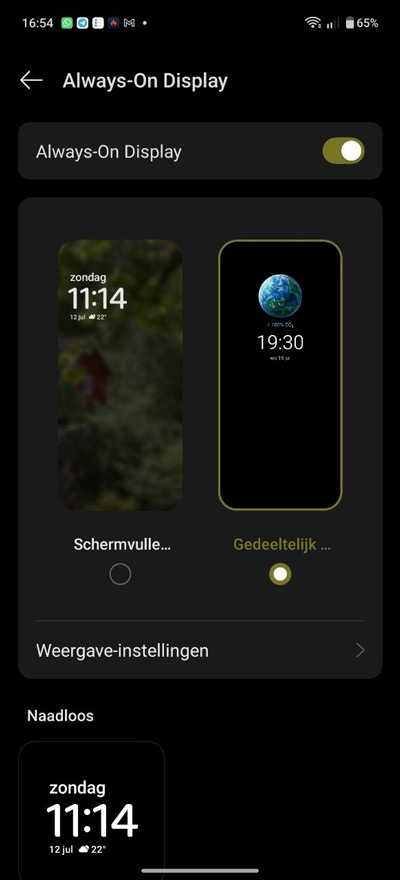
The Find X9 Ultra’s AMOLED screen gives you the option to enable the Always-On Display. Simply use the search bar in the settings, search for ‘Always-On Display’, and the settings will appear. With the Always-On Display, you can see notifications and alerts at a glance, as well as the time and date. You can choose whether the screen should be black (power-saving mode) or continue to show the background. In the latter mode, you can choose from various styles and images. For example, you can display a globe showing your carbon footprint based on the number of steps you’ve taken.
Edge Lighting
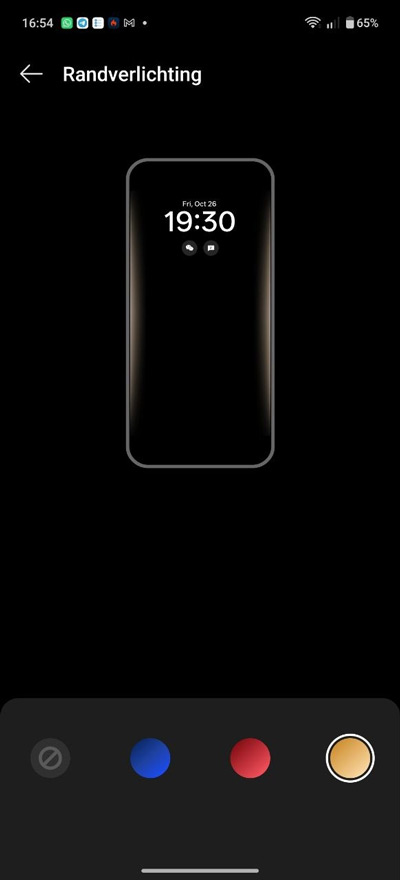
Another handy feature is called ‘Edge Lighting’ and can also be found in the comprehensive settings menu. When a notification arrives on your Oppo Find X9 Ultra, the screen can light up around the edges. This gives you a quick view of a new notification. You can choose from three colours: yellow-orange, red and blue.
App icons
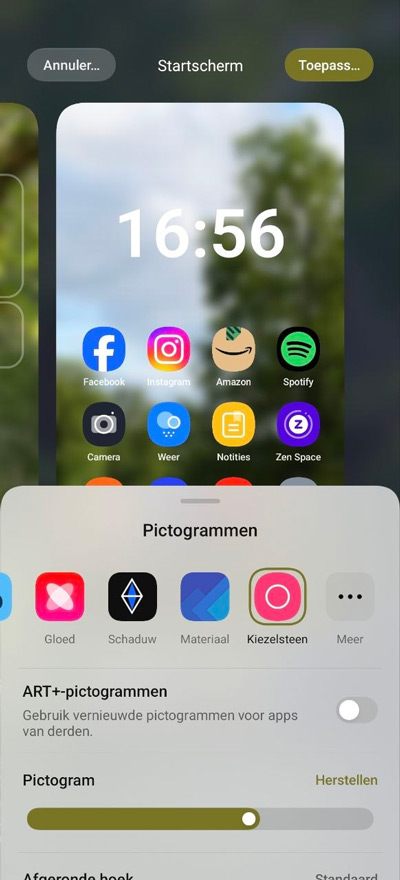
Would you like a different style for the app icons? You can easily customise this yourself. To do so, press and hold an empty space on your home screen, select ‘Background and style’, then scroll right at the bottom to find the ‘Icons’ option. Here you can customise the design of the app icons to your liking. You can also adjust the display size of the name and the icon itself, and choose to have rounded corners.
Personalisation
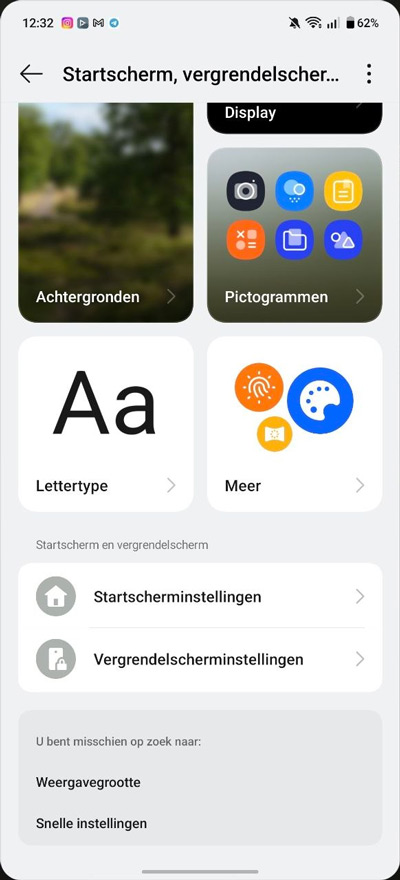
If you want to personalise your device even further, Oppo offers various options for this. You’ll find these under Settings > Home screen, lock screen and style. As well as the options mentioned earlier, you’ll also find, for example, an option to adjust the font. If you find the text too large or too small, you can adjust this to your liking here. You can also customise lock screen settings here, such as having the screen light up to turn it on. You can also add a signature, which will appear on the screen. If you lose your phone, whoever finds it will be able to see who it belongs to.
Status bar
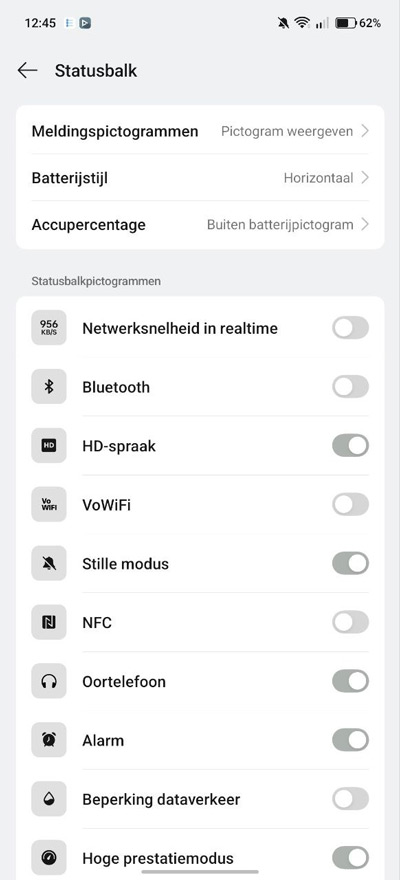
There’s another handy option in the smartphone settings. You’ll find it under the heading ‘Notifications and quick settings’. Under ‘Status bar’, you can choose which icons you want to see and, just as importantly, which ones you don’t. For example, if you always have Bluetooth switched on, you probably don’t need that icon at the top of the screen. You can turn it off using this option. You can also customise the style of the battery percentage display, or choose to show just the percentage without an icon. This helps keep things tidy.
Quick-launch button
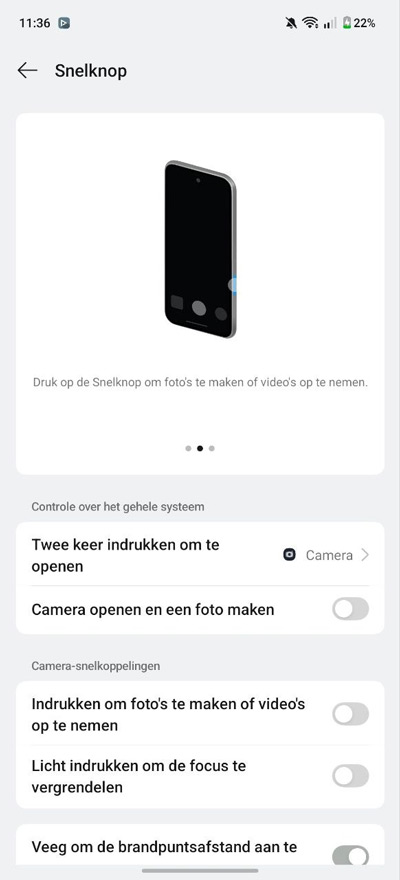
The orange button on the side of the Oppo Find X9 Ultra lets you launch the camera in a flash. But you might accidentally press that button (as we did). Fortunately, you can adjust various settings for this here. To do so, open the camera app, tap the six dots at the top of the screen, and go to settings. Then select the ‘Quick Button’ option. You can then customise various options here, as shown in the screenshot above. You can also adjust the pressure sensitivity.
Side button – Snap Key
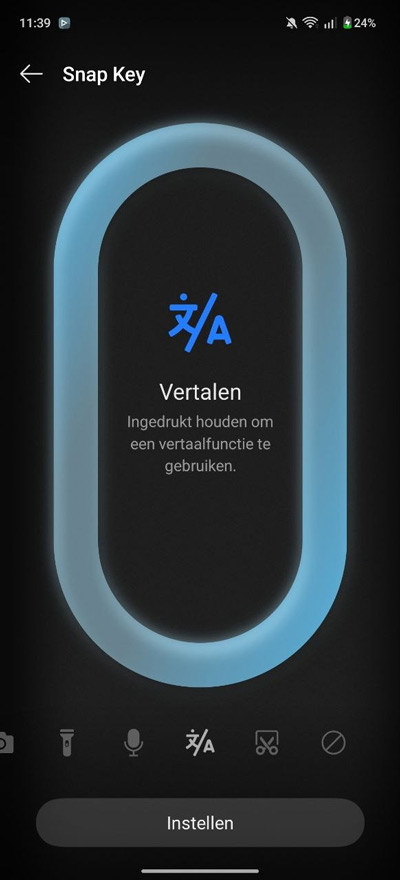
Another shortcut key is located on the left-hand side of the phone: the Snap Key. This is a shortcut key that allows you, for example, to quickly switch the phone to silent, vibrate or sound mode. If you don’t want those settings assigned to the hotkey, you can choose to change this. Go to your phone’s settings and scroll to the ‘Snap Key’ option. For example, you can choose to activate Do Not Disturb, launch the camera, start a translation, or assign a different action.
Battery
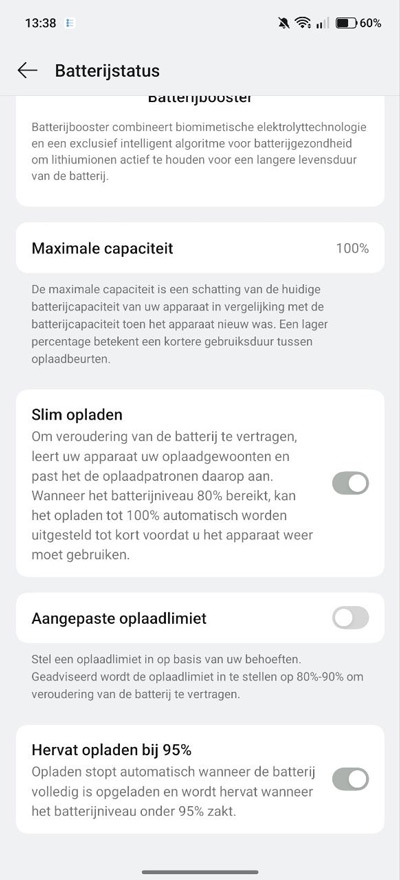
The Oppo’s battery lasts a good long time. But if you want to make your smartphone last as long as possible, it’s better in the long run not to always charge it to 100 per cent if you don’t need to. Go to Settings > Battery and scroll down. Here you’ll find the ‘Battery Status’ option. There, you can not only enable Smart Charging, but also set a customisable charging limit. You can choose a percentage between 80 and 100 per cent (in increments of five).
Camera tips
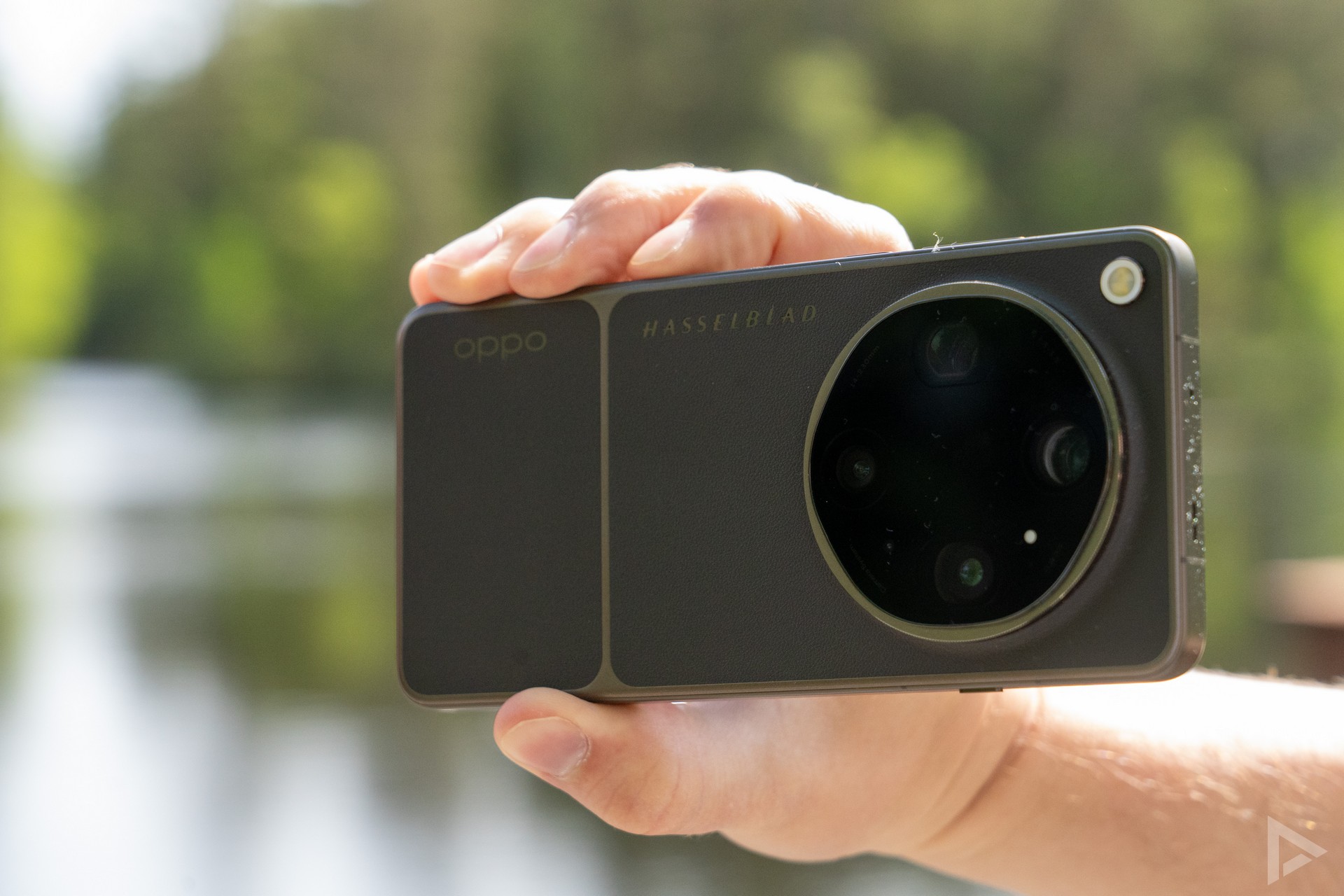
Everything about the Oppo Find X9 Ultra is, of course, centred around its advanced camera. DroidApp has previously published a comprehensive article featuring the best camera tips for the Oppo Find X9 Ultra. Here you can read all about the many features Oppo’s camera app has to offer, including grids, watermarks, handy tricks and useful tips!
If you’d like to get started with the Oppo yourself, you can buy it here: Belsimpel, Mobiel, MediaMarkt, Bol.com, Coolblue and the mobile network operators KPN and Odido.