Camera tips for the Oppo Find X9 Ultra
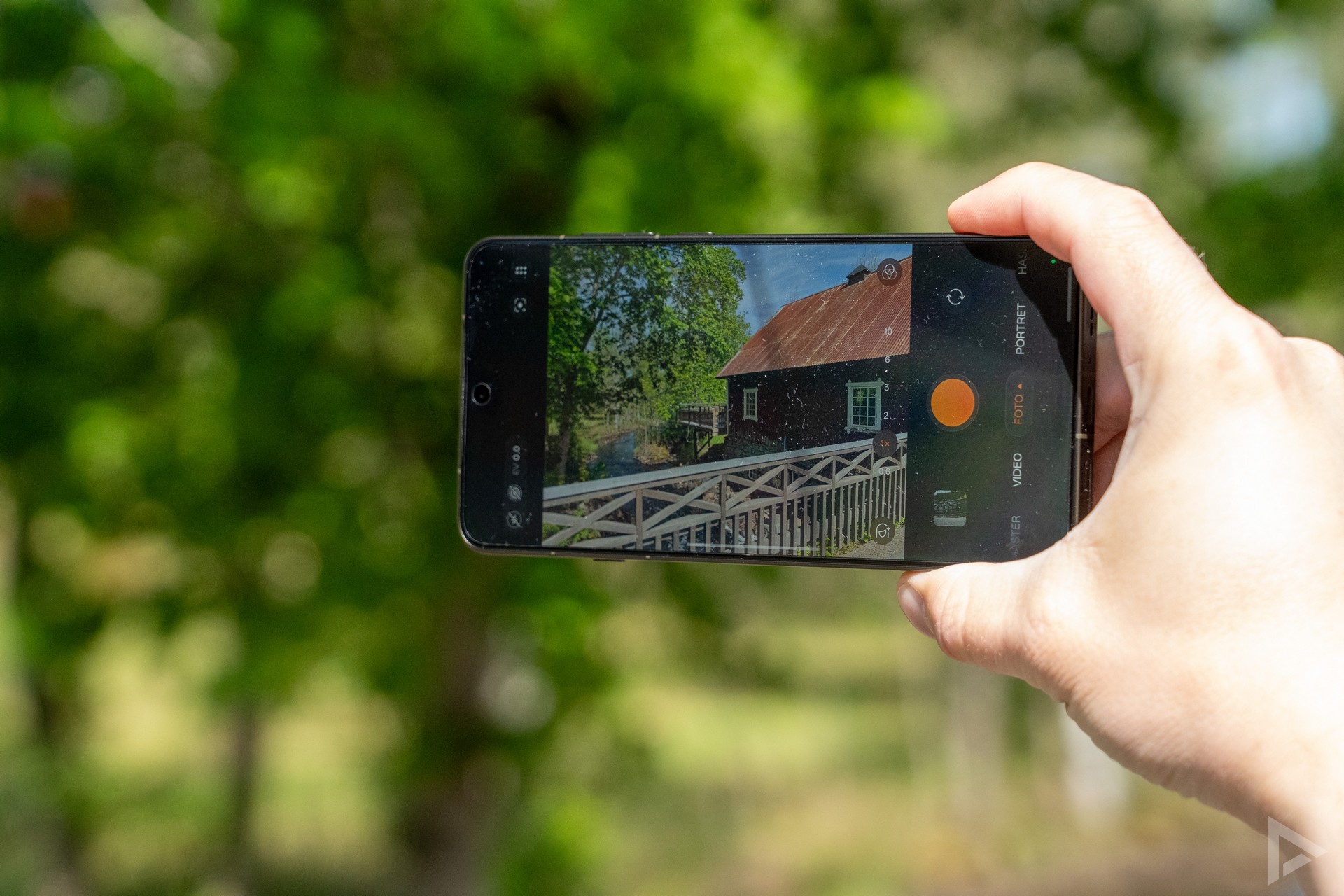
To be honest, we’re big fans of the Oppo Find X9 Ultra here at the editorial office. That’s because the camera is perfectly capable of capturing stunning images. To achieve this, the phone is equipped with four cameras. These consist of a 200-megapixel main camera, a 200-megapixel periscope telephoto lens with 3x zoom, a 50-megapixel periscope telephoto lens with 10x zoom, and a 50-megapixel wide-angle lens. There’s also a colour sensor.
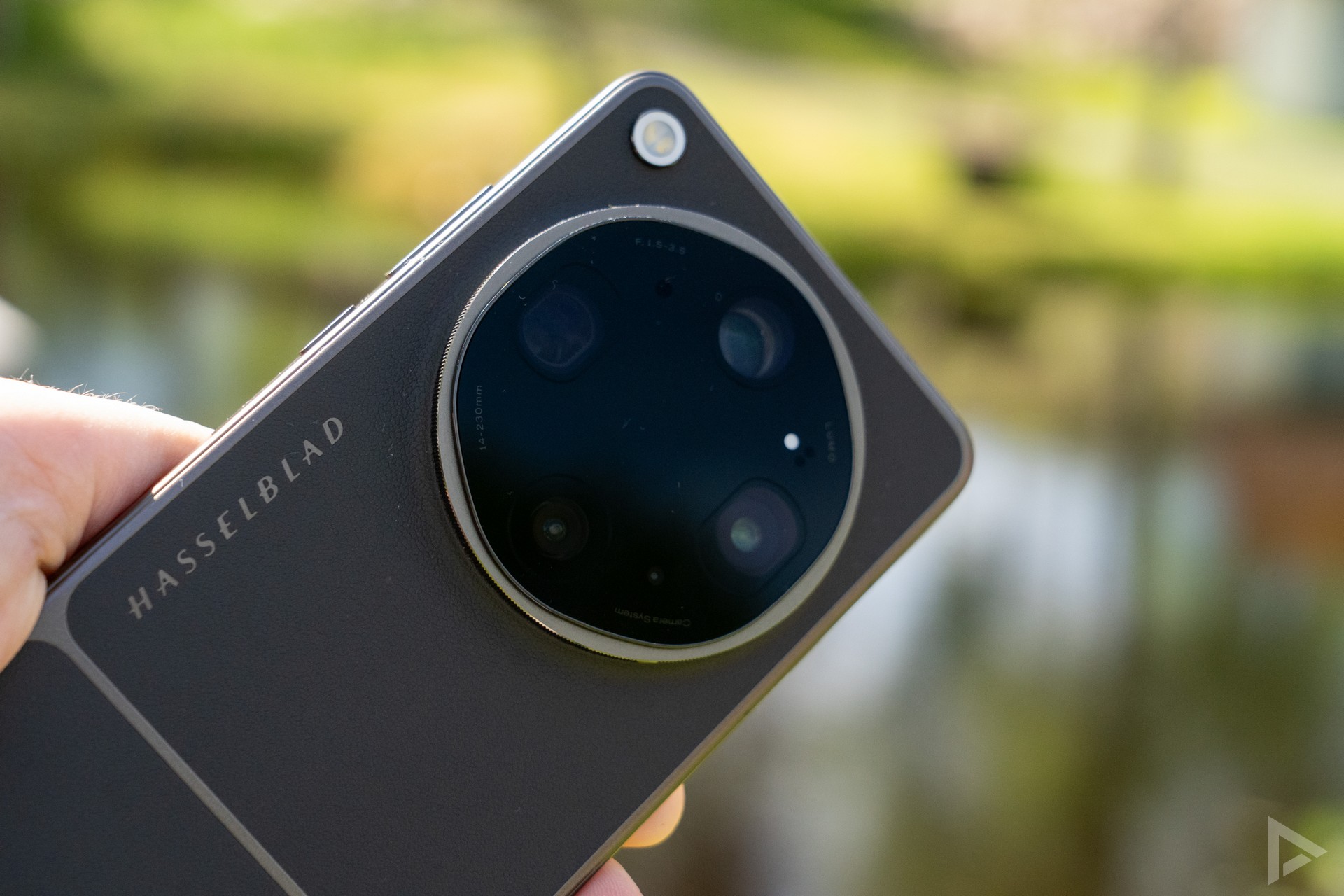
In our Oppo Find X9 Ultra review, we were very enthusiastic about the smartphone. What pleased us most was the depth of field applied when taking photos. Taking photos with the Find X9 Ultra is a real treat. If you want to make it even more of a treat, these 11 camera tips are sure to help. Handy detail: the tips are tailored to the Oppo Find X9 Ultra, but also work on many other Oppo devices, such as the Oppo Find X9 Pro (review).

Master Mode
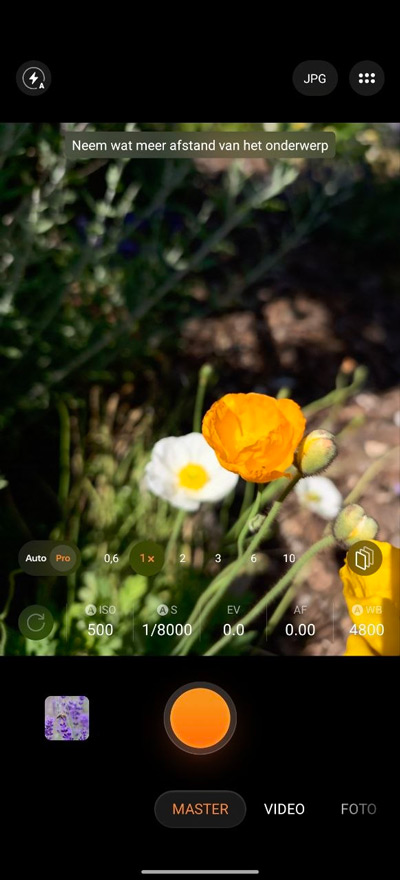
Oppo has partnered with Hasselblad to ensure the best possible photo quality. You’ll notice this in automatic mode, but in manual mode you can get even more out of your photos. In the camera app, you’ll find this option under the name ‘Master Mode’. Above the shutter button, you’ll find a button that takes you to the Pro settings. There, you can adjust the shutter speed, ISO, exposure and white balance. If you tap the ‘layers’ icon, you can use preset filters suited to different situations and conditions. Handy for your portraits! You can also access this menu if you want to edit a photo afterwards, as you can choose to shoot in RAW.
Portrait mode
Portrait mode is still overlooked by many users, and ‘snapshots’ of people are often taken in automatic mode. But that’s a shame, as there’s so much more you can get out of it. Switch to ‘Portrait’ in the camera app. You’ll take the best photos of people in this mode, with the focus on the face whilst the background is blurred. A handy tip: it doesn’t just work well for people, but also for food and special macro shots, for example. It’s worth a try. For example, the photo of the smoothie below was taken in portrait mode.

Swipe up for options
A window with extra options appears when you swipe up from the bottom in the camera app, just below the shutter button. The options available vary depending on the mode. But here you’ll find options such as aspect ratio, soft light, capturing motion using action mode, macro mode, timer, interval and automatic HDR. In the video camera, for example, you can choose Ultra-steady mode, sound focus and focus lock. These are all useful features that can come in handy when filming.
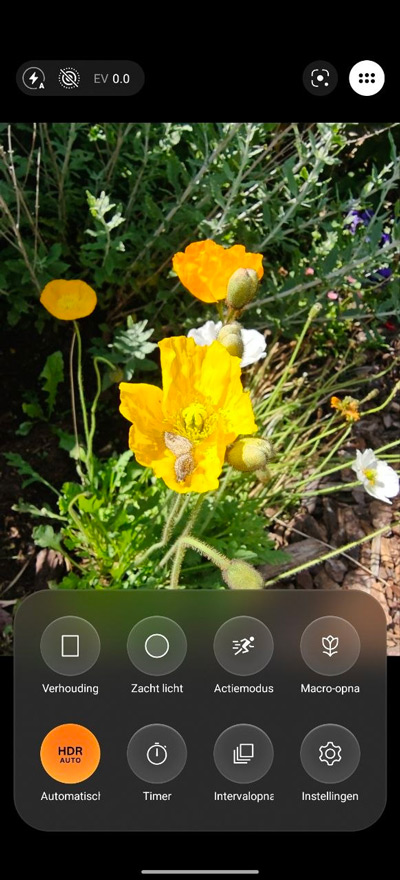
Reordering shooting modes
In the camera app, you’ll find a whole host of options and features at the bottom of the screen. Under ‘More’, amongst other things, you’ll find a whole host of useful tools. Here, you can select Pro video mode, a panorama function, slow motion, text capture or night mode (although the camera does this automatically when necessary). But if you scroll further down, you’ll find a pencil icon. This is very handy, as it allows you to reorder the various modes. Useful, for example, if you never use portrait mode but do use panorama mode. This way, you’ll have quick access to your favourite mode.
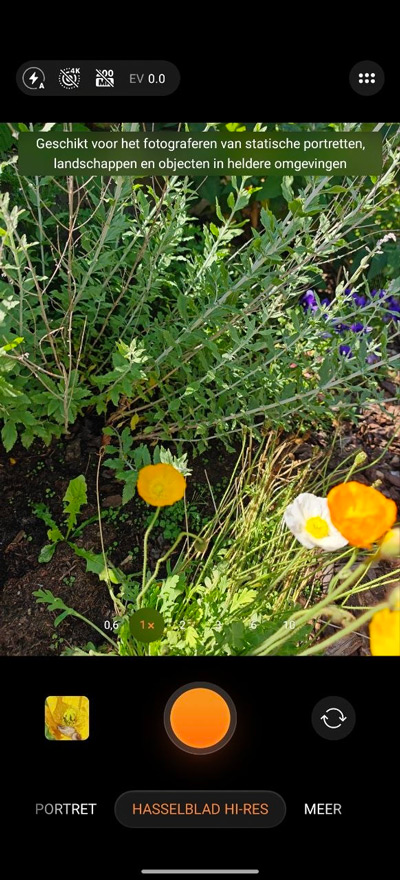
Hasselblad Hi-Res
The true power of Hasselblad in your Oppo camera really comes to the fore in Hasselblad Hi-Res mode. In this mode, you can capture images in high resolution, which improves the quality. Because images are captured in high resolution, you can also crop them more effectively. This allows you to capture even the finest details more clearly. These images are also easier to print in large formats. This is particularly useful for the landscapes you capture.
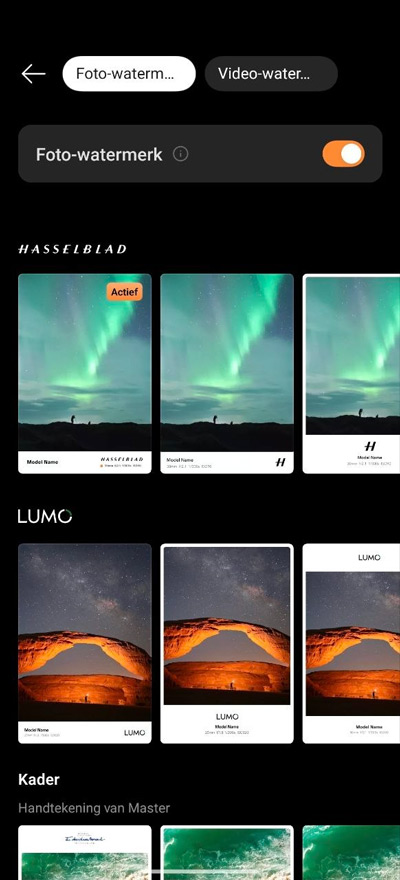
Watermark
Do you like to share the technical details of your photo, such as the shutter speed, aperture and more? Or do you like to let others know which camera you used to take your photos? In the camera app settings (tap the six dots, then select ‘Settings’), you’ll find the ‘watermark’ option. Here you’ll find a wide range of different styles that you can use as a watermark. Some of these can be customised, allowing you to automatically include your own name in the watermark.
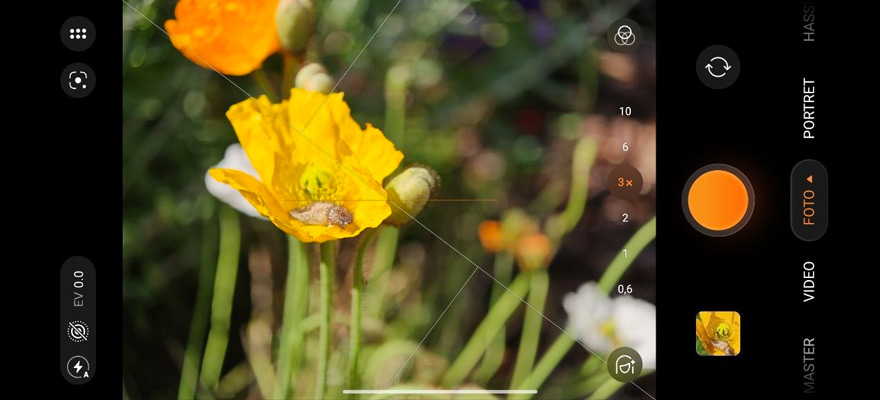
Composition Guide
Let’s stay with the settings screen in the camera app for a moment. Here, you can select the ‘Composition aids’ option. If you want to avoid your photos being crooked or ‘the sea running out’, these options will come in very handy. By choosing a grid, diagonal lines or the golden spiral, you can make the most of the strongest elements in a photo. These are visual composition techniques that help guide the viewer’s eyes ‘through the photo’ in a natural way. There’s also a spirit level. That saves a bit of post-processing.
Save settings
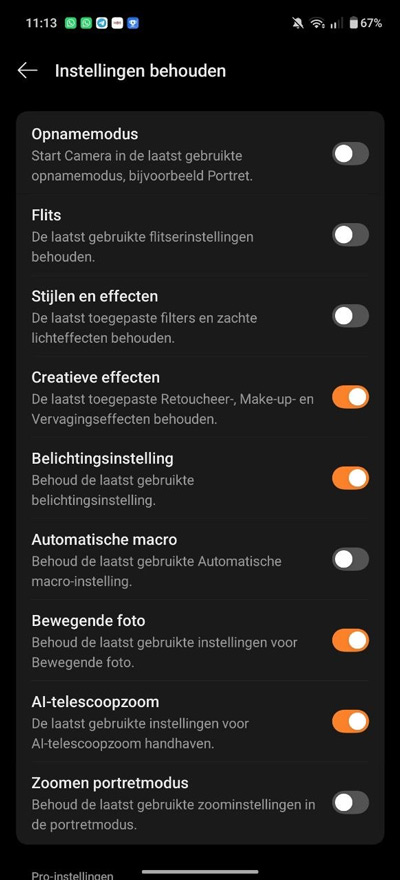
In the settings screen, you’ll find another handy option. These include options to turn off the shutter sound, add location tags and ‘keep settings’. This allows you to specify that the last-used shooting mode or other settings are applied immediately when you open the camera app. Normally, the app starts with a ‘blank slate’.
Additional modes
We’ve already mentioned various modes you can use on the Oppo Find X9 Ultra above, but a few are worth a special mention. Take ‘Long exposure’, for example. Without having to worry about all sorts of things or fiddle with settings, this gives your photo a ‘sweep effect’. This looks particularly good when photographing a waterfall, for example. Whereas you’d normally need a tripod, this feature on the Oppo ensures it works well even without one, as you can see below.

Use the orange button
If you don’t want to rely on the screen for everything, the Oppo Find X9 Ultra offers a handy shutter button. This elongated orange button is located on the right-hand side of the smartphone. You can swipe across it to zoom in or out. You can also press it to take a photo. If you’re in another app or on a different screen, you can double-press it to quickly launch the camera.

Editing
The tenth tip in this article on Oppo Find X9 Ultra camera tips is a must-read, as it’s all about editing. Have you taken a lovely photo, but think it could be just that little bit better? Then tap the pencil icon next to your photo in the Oppo Gallery app. This opens the photo editor. Using AI, you can, for example, easily remove objects from your image, choose the right crop, remove glare, improve brightness and even remove unwanted people from your photo. Of course, there are also other tools available for the usual photo editing tasks.
Would you like to try out the Oppo Find X9 Ultra for yourself? The phone is available from Belsimpel, Mobiel, MediaMarkt, Bol.com, Coolblue and the mobile network operators KPN and Odido.