
Android: setting daylight saving time
Every year around this time, it's the time when the clocks have to be changed. With winter, the clock goes back one hour, with summer time the clock goes forward one hour. If you are in doubt whether this is automatic on your device, DroidApp will help you set daylight saving time. Does my phone automatically go on daylight saving time? In many cases, the answer to this question is 'yes'. You can check this by following the steps below.
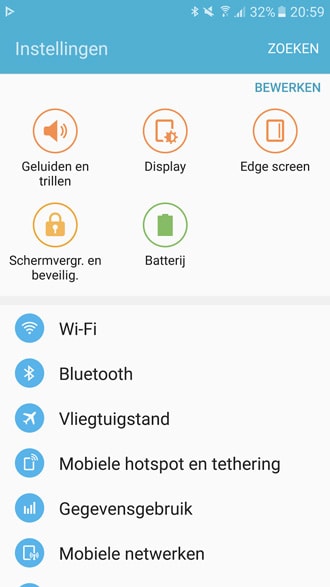
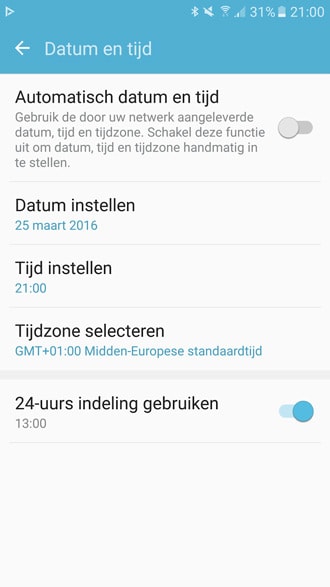
- Go to Settings
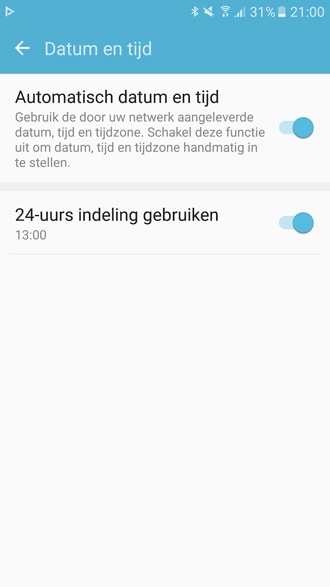
- Select the Date and time option
Sometimes the option is a bit more hidden. For this, you can then go to Settings > System > Date and time.
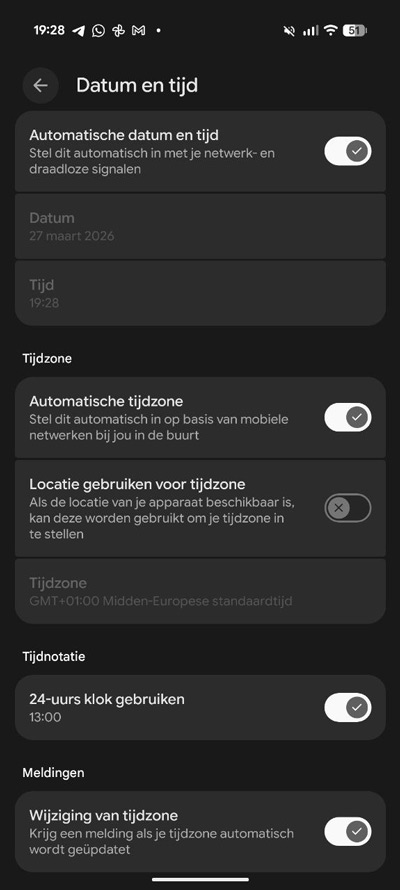
Automatic
Is the 'automatic date and time' option checked? Then you can assume that the automatic time zone is adopted and thus your phone is set correctly. If this is not enabled, tick it now.
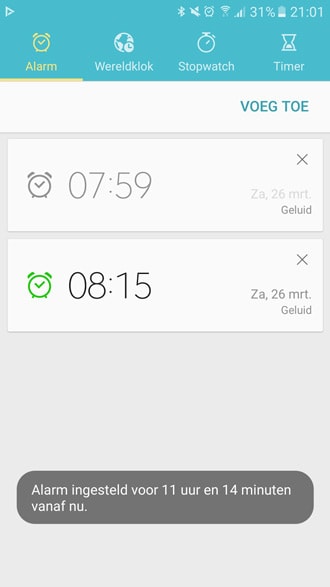
Check your alarm clock
Want to make sure that all is well with daylight saving time? Then there's a handy way to check. To do this, go to the alarm clock/alarm clock app and set a time for tomorrow morning. You will then see in how many hours and minutes the alarm will go off. That way, you can work out if setting daylight saving time is going well.
Besides your smartphone and tablet, don't forget to set your clock radio, (digital) camera and the clocks on the wall to daylight saving time! Winter time will start again on Sunday 25 October.
We have an overview for you below, for when to set your clocks next time;
- Daylight saving time 2026: 29 March
- Summer time 2027: 28 March
- Summer time 2028: 26 March
- Summer time 2029: 25 March
Reading tip: Weather app test: a year of research into the most accurate weather app

)